
Field sales reps: ChatGPT setup
For ChatGPT Work or a personal workspace. Use your own TerriTool account.
01Get TerriTool ready
If TerriTool is already connected, go straight to the task prompts. Otherwise, ask your manager to help with this one-time setup.
Optional setup files for your manager
You do not need to open these files to use the task prompts. The plugin already includes role guidance.
02Install the plugin
ChatGPT Work. In a new conversation, attach the plugin ZIP and paste this request:
@plugin-creator Inspect the attached territool-chatgpt-field-sales plugin ZIP. Add it to my personal marketplace where supported, and guide me through installation and connecting my own TerriTool account. Preserve the role boundaries and credit confirmation rules. Do not perform sales actions during setup.
Codex. Replace @plugin-creator with $plugin-creator. Review the setup, install from the configured marketplace, and start a new conversation.
If local plugins are unavailable, use your workspace administrator’s installation process. Where custom MCP connections are enabled, you can also connect the URL below directly and use the task prompts on this page.
03Connect TerriTool
Sign in as yourself. Follow the connection prompt and use your own TerriTool account.
Loading connection URL…
The connection must use the same environment as the downloaded plugin.
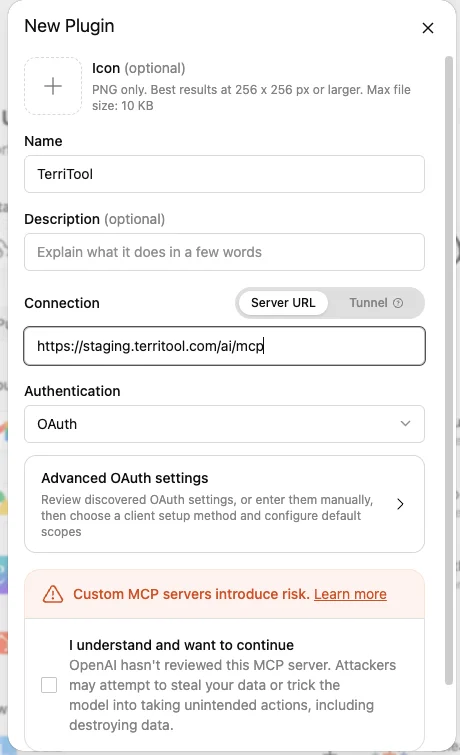
Custom MCP connection. Use the server URL above and select OAuth. Availability depends on your ChatGPT account and workspace settings.
04Set up your Project
Creating your first Project? Follow the Project creation walkthrough with screenshots for ChatGPT or Codex desktop, then return here to copy your introduction.
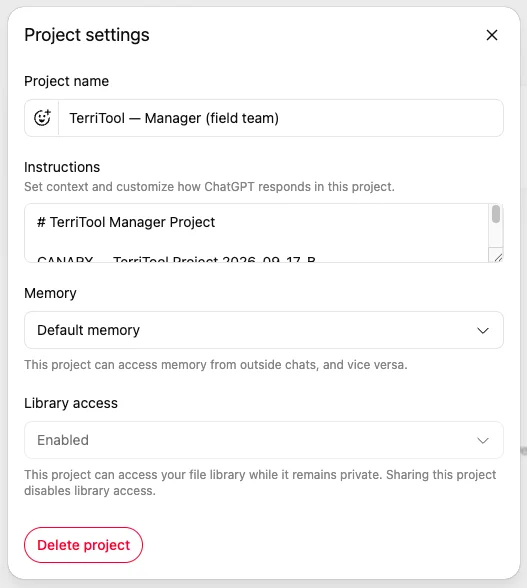
- Create a Project named TerriTool — Field Sales.
- Start a chat in that Project and select TerriTool as shown in step 5.
- Copy the introduction below, paste it into that chat, and send it once.
Use TerriTool for my own saved customers, routes, and visits. I am a field sales rep, not a team manager. Ask one short question at a time when you need details. Use simple words. Do not make up results. Show credit costs and wait for my confirmation before spending credits.
No knowledge file to open. For day-to-day work, choose a task below, copy its prompt, paste it into your connected TerriTool chat, and answer the questions.
Optional Project instructions — for your manager
A manager can paste these into Project instructions to keep the role guidance across chats.
Loading instructions…
05Use MCP in your Project chat
- In ChatGPT, open TerriTool — Field Sales from your Projects.
- Start a new chat inside that Project after installing and connecting TerriTool. Use Chat or Work where your installed plugin is available.
- In the message box, type
@, search for TerriTool, and select your connected TerriTool plugin from the suggestions. The name may match the connection name you chose in step 3. - Keep that plugin selected and enter the connection-check request in step 6. Review any tool permission prompt for the requested action.
Select the plugin in the chat. Uploading Project files or pasting an MCP URL into a message does not connect TerriTool. Choose the actual installed plugin from the @ suggestions before sending your request.
For each new Project chat, select TerriTool again when you want to explicitly use its tools. ChatGPT may also choose installed tools automatically for a relevant request.
TerriTool does not appear, or the chat cannot use its tools
- Check that you are in the same ChatGPT workspace where you installed TerriTool.
- Open Plugins, find your installed TerriTool connection, and complete sign-in if requested.
- Return to this Project and start a new chat, then try selecting TerriTool again.
- If your workspace blocks the plugin or this chat mode does not offer it, ask your workspace administrator to enable the supported connection. Project instructions alone cannot provide MCP access.
Reference: Using installed plugins · Project chats
06Check and use the connection
In the Project chat with TerriTool selected, send this request:
Use TerriTool. Check my connection and available tools for my own saved accounts. Do not save leads, buy contacts, or create a route.
Confirm that the expected account and rep tools are available before starting work. Look for a TerriTool tool call and its returned result, rather than only a reply saying it is connected. If the chat reports no available tools or an authentication error, return to step 5.
Once the check succeeds, choose your task below. Copy its prompt and paste it into this chat.
Review any credit preview before confirming a lead save or contact purchase. Request route creation only when you are ready to publish the route.
07What do you need to do?
1. Copy a prompt. 2. Paste it into your TerriTool chat. 3. Press Send. ChatGPT will ask for the details it needs. You do not need to edit the prompt or open a file.
Use these after TerriTool is connected and selected in your chat. Pick one task at a time. If ChatGPT says it cannot access TerriTool, return to step 5.
Find my saved customers
Use TerriTool to find a customer in my saved accounts. Ask me for the business name or city first. Show matching names and addresses so I can choose the right one. Ask one short question at a time if you need more details. Use simple words and only real TerriTool results.
Find new customers
Use TerriTool to find new businesses for me. Ask me one question at a time: which US city and state or ZIP code, then what kind of business. Show the results before saving. If an earlier search has unsaved results, help me keep them or ask before replacing them. Use simple words and only real TerriTool results.
Save customers I found
Use TerriTool to save customers from the lead search in this chat to my own account. Ask which ones I want. If the results are missing, tell me instead of starting another search. Show the names and credit cost, then wait for my confirmation before saving. Ask one short question at a time if you need more details. Use simple words and only real TerriTool results.
Plan my driving route
Use TerriTool to plan a route from my saved customers. Ask which customers or city I want to visit, then ask about my start, finish, and route name, one question at a time. If I have no preference, use sensible defaults. Tell me that creating the route makes it active. Create the requested route and give me the link. Do not buy or save new leads. Use simple words and only real TerriTool results.
Open a route I already made
Use TerriTool to open one of my saved routes. Ask me for its name if I have not given it. Show the stops and the route link. Do not create a new route. Ask one short question at a time if you need more details. Use simple words and only real TerriTool results.
Show my next stop
Use TerriTool to show the next stop on my route. Ask which route if it is not clear from this chat. Give me the business name and address, and any route link returned by TerriTool. Ask one short question at a time if you need more details. Use simple words and only real TerriTool results.
Mark a customer as visited
Use TerriTool to mark a customer as visited on my route. Ask which customer and which route if they are not clear from this chat. Make sure we have the right customer before updating. Tell me when the visit is recorded. Ask one short question at a time if you need more details. Use simple words and only real TerriTool results.
Save a note about a customer
Use TerriTool to add a note to a saved customer. Ask which customer, then ask what I want the note to say. If several customers match, let me choose. Save my note and tell me when it is done. Ask one short question at a time if you need more details. Use simple words and only real TerriTool results.
Record a call or meeting
Use TerriTool to record a call or meeting with a saved customer. Ask me one question at a time for the customer, whether it was a call or meeting, when it happened, and what we discussed. Record the details and tell me when it is done. Use simple words and only real TerriTool results.
Set a follow-up reminder
Use TerriTool to record a follow-up reminder for a saved customer. Ask me one question at a time for the customer, what I need to do, and the date and time including my time zone. Confirm the details that TerriTool recorded. Do not promise a notification unless the tool confirms one. Use simple words and only real TerriTool results.
Add a business I walked into
Use TerriTool to add a business I found in person to my own accounts. Ask its name and street address or city, one question at a time, and check whether it is already saved. This is not a business from an AI lead search. Do not add it to a route unless I ask. Use simple words and only real TerriTool results.
Add a person I already know
Use TerriTool to add a contact I already know to a saved customer. Ask which business, the person’s name, and the contact details I have, one question at a time. Use only the details I give you. Do not buy contact details. Use simple words and only real TerriTool results.
Find people at a business
Use TerriTool to look for contacts at a business. Ask which business first and help me select the right one. Complete the available primary and secondary contact searches automatically; do not stop at an empty primary result or a bulk count. Show the available people and their sources. Say when details are unverified, and explain any search failure instead of saying no contacts. Do not buy contacts. Ask one short question at a time if you need more details. Use simple words and only real TerriTool results.
Buy contact details
Use TerriTool to help me buy contact details for a business. Ask which business and which contacts I want, one question at a time. Check my credits, show exactly what I will get and the total credit cost, then wait for my confirmation before purchasing. Use simple words and only real TerriTool results.
Make a customer high priority
Use TerriTool to mark one of my saved customers as High Priority. Ask which customer and let me choose if there are several matches. Update the customer’s status, then confirm the result. Ask one short question at a time if you need more details. Use simple words and only real TerriTool results.