
ChatGPT setup tutorials
Choose your role. Copy one prompt for the task you want to do.
Create your Project first
Set up a dedicated TerriTool Project before starting the MCP conversation.
Choose the setup that matches your app. The screenshots show the desktop Project creation flow.
Already have a Project? Use MCP in your chat ↓Codex / desktop Project setup
- Click + beside Projects.
Find Projects in the sidebar and click the + on its right.
Click + to create a Project
Click the + button beside Projects. Enlarge image ↗ - Name the Project.
Enter TerriTool — Field Sales or TerriTool — Manager in Project name.
Under Source folders, use Add if you want this Project to access a folder on your computer, if your manager has given you local files. You do not need a folder or knowledge file just to copy a task prompt. A local folder is not the MCP connection.
Enter your Project name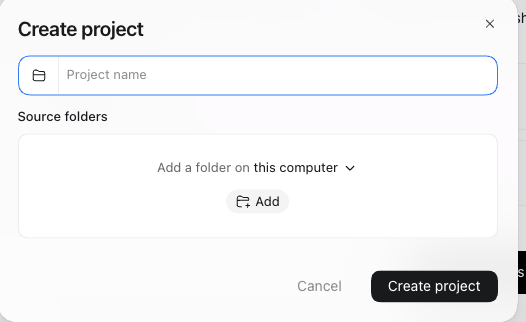
Enter a name; attach a source folder if you need local files. Enlarge image ↗ - Click Create project.
Save the Project using the Create project button at the bottom right.
Click Create projectClick Create project to finish. Enlarge image ↗ - Start a chat in the Project.
Open the new Project and start a new chat or task. Use your installed role plugin. Choose a task prompt from your role page and paste it into the chat.
Then follow Use MCP in a Project chat below to select TerriTool and check its tools.
Creating a Project does not connect TerriTool. Complete the plugin installation and TerriTool sign-in from your role tutorial, then select the connected plugin in the new chat.
Reference: ChatGPT and local Projects.
Use MCP in a Project chat
After connecting TerriTool, select it inside your ChatGPT Project to work with live accounts, routes, and team data.
Not connected yet? Follow the setup tutorial for your role above first.
- Open your TerriTool Project.
Choose your Field Sales or Manager Project in ChatGPT, then start a new chat inside that Project.
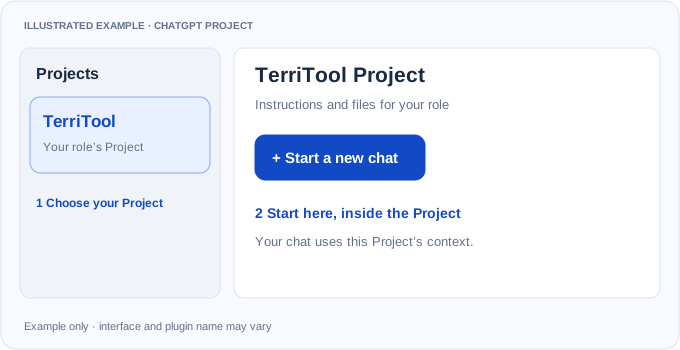
Illustrated example: start the chat inside your role’s Project. Enlarge image ↗ - Select TerriTool in the chat.
Type
@in the message box, search for TerriTool, and select your installed plugin from the suggestions. Its name may match the connection name you chose during setup.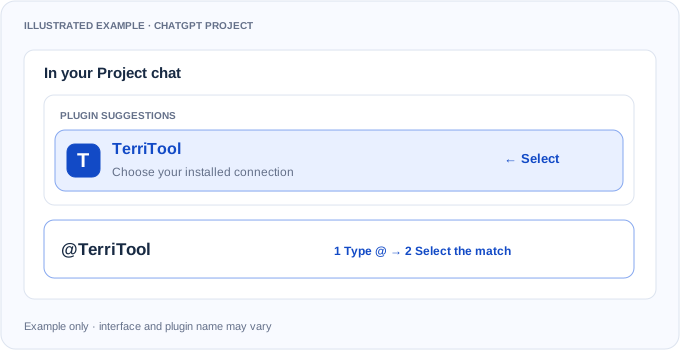
Illustrated example: select the actual installed plugin. Enlarge image ↗ - Check that MCP tools are available.
With TerriTool selected, send this request:
CONNECTION CHECKUse TerriTool. Check which tools are available to this chat. If a read-only account lookup is available, use it to verify my connection. Do not save leads, buy contacts, assign accounts, or publish routes.
Check for a TerriTool tool call and its returned result. A message saying “connected” alone does not verify access.
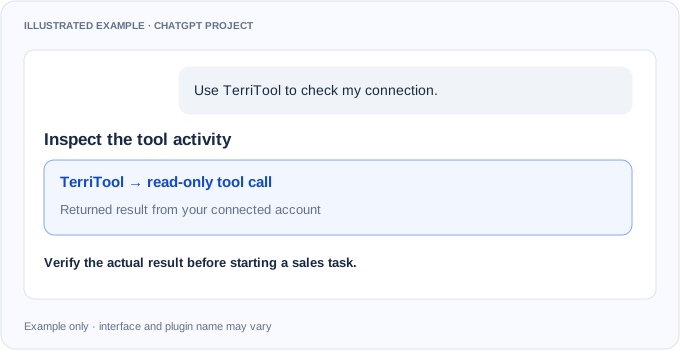
Illustrated example: verify a real tool result; no account data is shown. Enlarge image ↗ - Ask for your sales task.
Choose a field sales task prompt or a manager task prompt. Click Copy prompt, paste it into your TerriTool chat, and press Send. Answer one question at a time. Continue in this Project chat; select TerriTool again when starting another chat where you want to use it explicitly.
Project files do not connect MCP. Instructions and knowledge files provide context. You still need the installed, authenticated TerriTool connection. Pasting the MCP URL into a message does not enable its tools.
TerriTool is missing from the chat
Check that you are in the same ChatGPT workspace where TerriTool is installed. Open Plugins, complete the TerriTool connection if needed, then start a new chat in your Project. If your workspace or chat mode does not offer the plugin, ask your administrator to enable a supported connection.
See the official guides for using plugins and Project chats.
Privacy Policy · Terms of Service · TerriTool LLC